
Usage Analytics
The Usage Analytics page helps you keep track of how much you're using GetThru’s texting and calling tools. Whether you're managing your budget or just monitoring message volume, this dashboard provides a clear view of your account activity. It only includes billable usage, making it easier to estimate and anticipate costs.
In this guide, we’ll show you how to access Usage Analytics, explain what each column means, estimate your costs, and view usage across subaccounts (if applicable).
TABLE OF CONTENTS
Accessing the Usage Analytics Page
To access the page, expand Account Tools and click Usage Analytics.
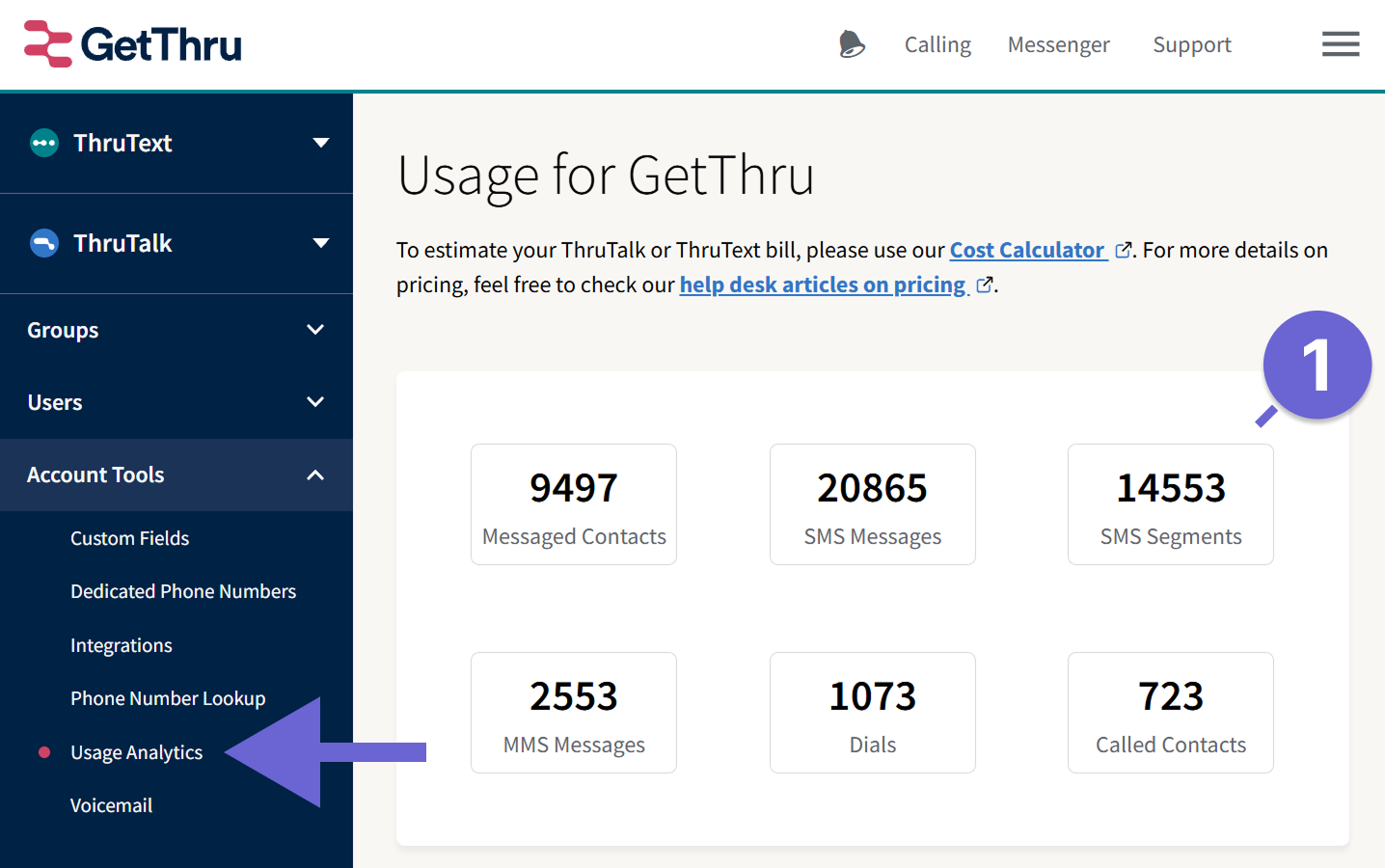
- Total Usage: At the top of the page, you'll see usage totals for your accounts entire history.
Monthly Breakdown
The table on the Usage Analytics page shows monthly usage totals. Data is grouped by calendar month in UTC time and updates nightly.
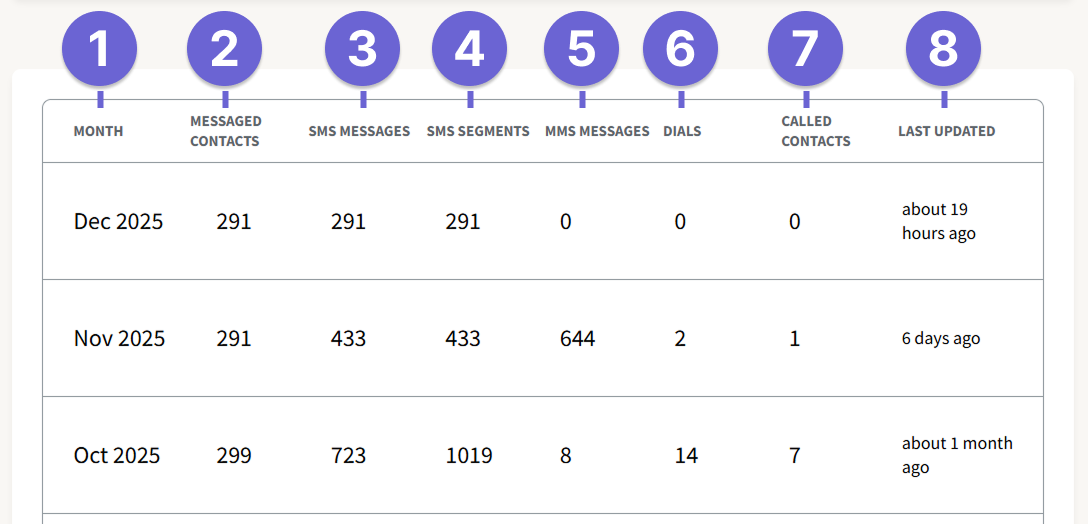
- Month: The calendar month your usage occurred. For example, Jan 2025 contains usage from 01/01/2025 00:00 UTC - 02/01/2025 00:00 UTC.
- Messaged Contacts: The number of unique contacts who received at least one message that month.
- SMS Messages: All outgoing SMS messages, including initial messages, outgoing replies, opt out confirmations, and followups.
- SMS Segments: The number of SMS message segments sent in outgoing SMS messages. Read more about segments here: Text Message Segments.
- MMS Messages: Outgoing MMS messages, including messages in initial sends or followups. Read more about MMS messages here: What is MMS in ThruText?.
- Dials: Completed dials (calls) placed during the month.
- Called Contacts: Unique contacts who received a call that month.
- Last Updated: The last time that row of data was updated. Rows for the current month update nightly at approximately 5:30 AM UTC. Rows for past months stop updating once they are finalized.
What's Not Included
Usage Analytics only tracks billable usage. The following are excluded:
- Unbillable Message Errors: Some messages fail to deliver after they've left our system due to carrier issues. These may or may not be billable. Learn more: Understanding Message Errors.
- Unbillable Message Statuses: ThruText's message sending system may hold back messages due to rate limits, carrier regulations, or other issues and are not always billable. Learn more: Understanding Message Statuses in ThruText.
- Not Dialed Calls: Calls blocked due to time restrictions (e.g. outside 8 AM–9 PM local time) are not counted. Learn more: Understanding Dialing Hour Enforcement.
Estimating Your Costs
You can estimate your costs using the rates from your contract and our Cost Calculator.
- Check your contract for your account's messaging and calling rates.
- Use the totals on the Usage Analytics page to gather unit counts.
- Enter your rates and units into the cost calculator and determine your costs. See our guide: Using Our Cost Calculator.
Network Account Usage
Some GetThru accounts have subaccounts. If your account does, you can view usage across your entire network.
Accessing Network Account Usage
This page will only be visible if
- Your account is a parent account and has subaccounts linked to it
- You have the Account Owner permission level. Read more here: Permission Levels.
To access this page, click Subaccounts Usage from the Usage Analytics page:
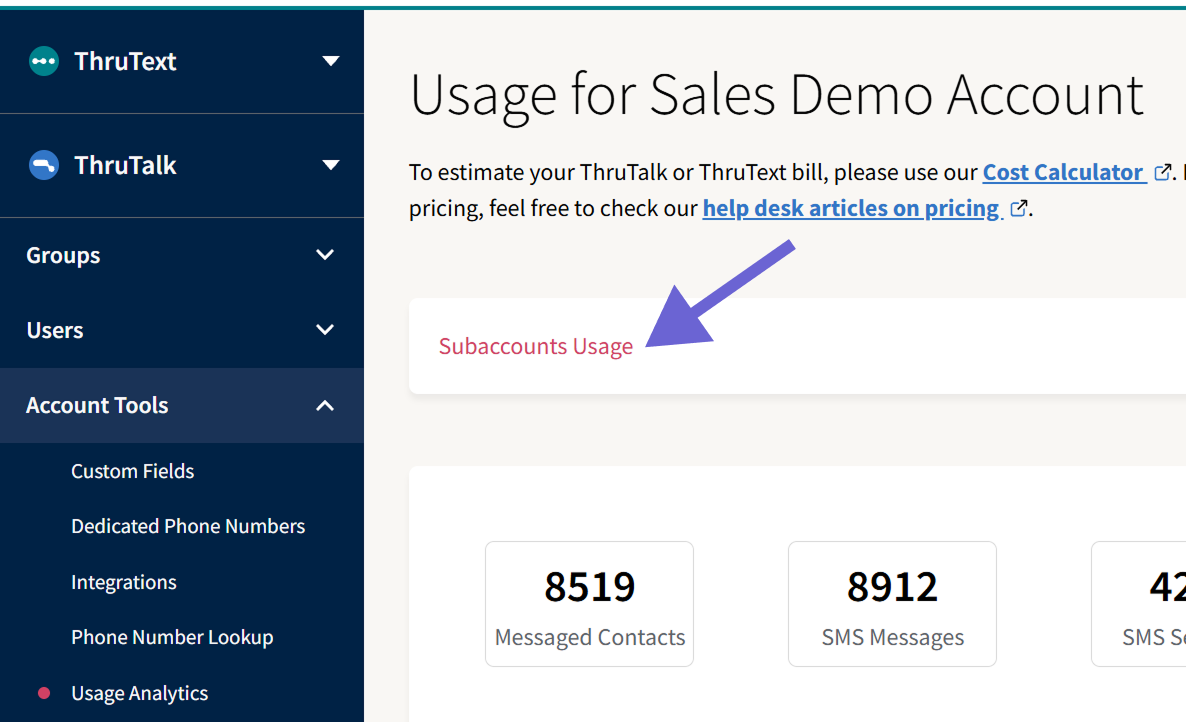
This will take you to a page where you can see your entire network's usage.
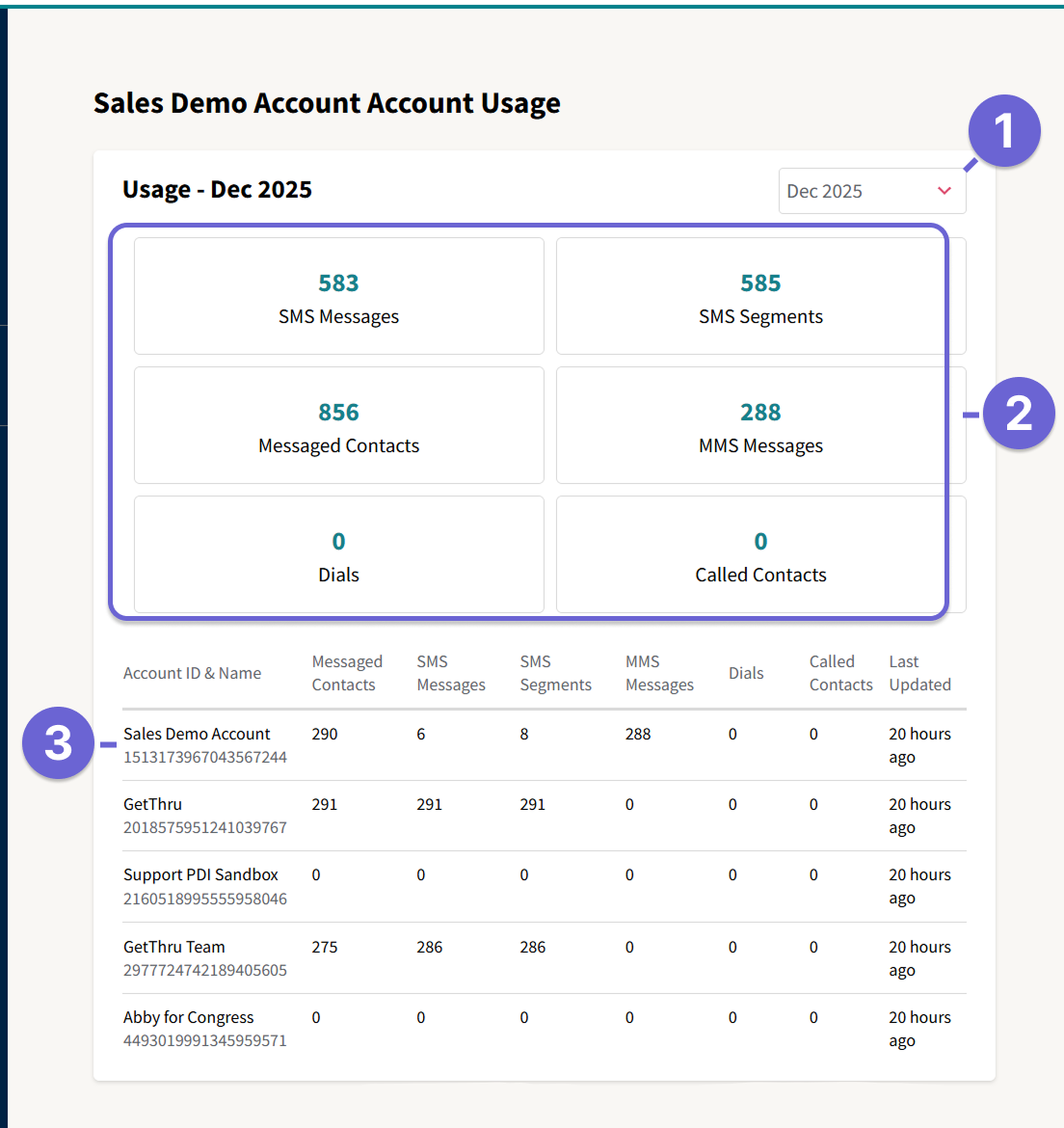
- Month Dropdown: Select a different month to update the total network usage and account usage table.
- Total Network Usage: Total combined usage across the network for the month.
- Account Usage Table: Each account in the network will have its own row with usage for the month. The parent account will appear first with the subaccounts below.
You can request to become a reseller or open a reseller subaccount at getthru.io/sign-up. You can also request a subaccount for 10DLC, VAN, or billing reasons at getthru.io/sign-up-subaccount. Feel free to reach out to support@getthru.io for questions.
Best Practices and Additional Information
- Monthly Breakdown by Campaign: The Tag report is a monthly export that breaks down usage by campaign. Generate this export to see how much usage you had in each campaign. Read more here: Using Campaign Tags And Tag Reports.