
Bulk Uploading Results to VAN
If your campaign results didn’t sync to VAN because VAN IDs weren’t mapped on your group, you can still upload those results using VAN’s Bulk Uploader.
This guide will walk you through using Excel to add missing VAN IDs to your campaign export to ensure that it can be uploaded to VAN.
TABLE OF CONTENTS
Step 1: Create a Campaign Export
First, create an export for your campaign.
ThruText
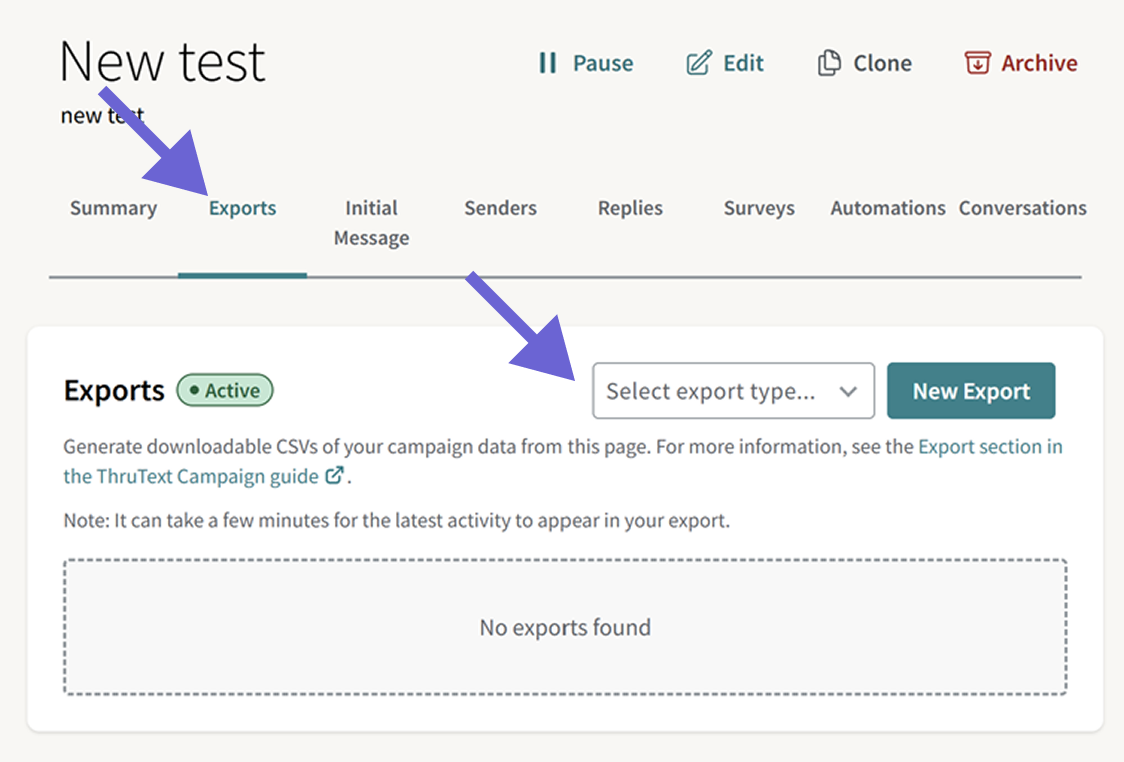
For a ThruText campaign, go to the Campaign Summary page and click on the Exports tab. Generate and download the export with the data you wish to upload to VAN.
ThruTalk
For a ThruTalk campaign, go to the Campaign Summary page and click on the Exports tab. Generate a campaign dials export and then download it.
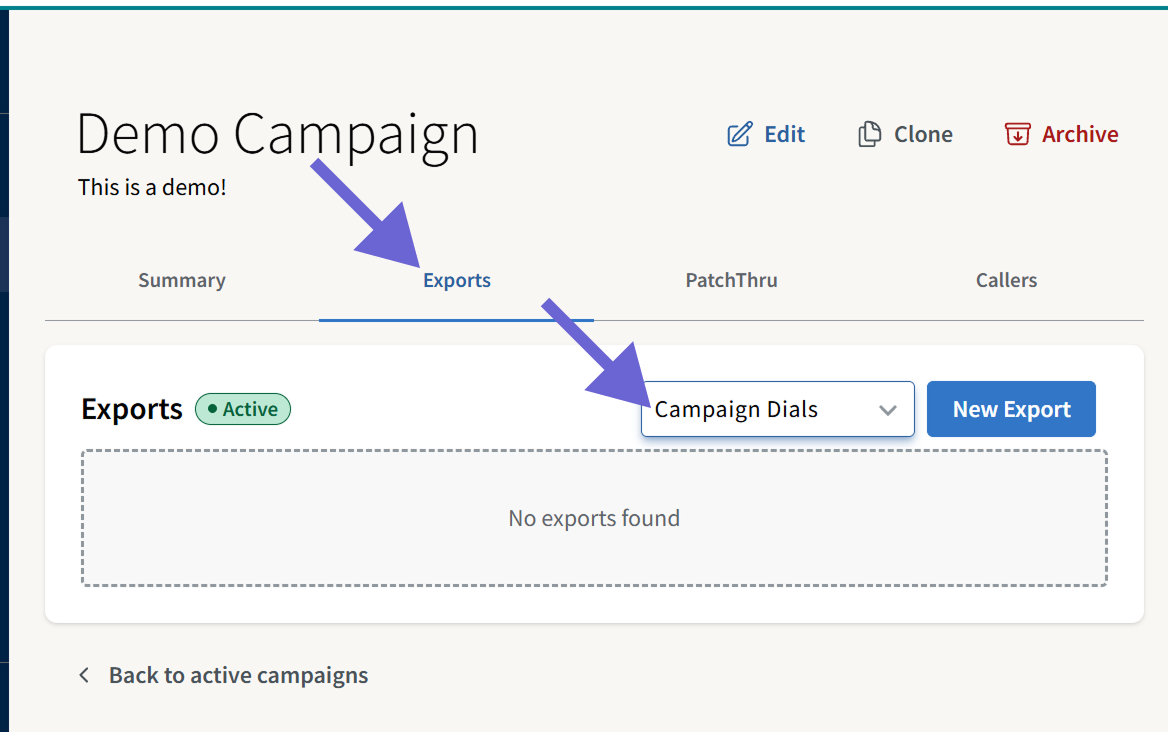 In this guide, the Campaign Dials export is used as an example.
Step 2: Reupload your VAN Group and Map VAN IDs
You can use Excel to match rows from two different files if the files have a shared value. In this step, you will create a new file that has a shared value - the phone number - in addition to VAN IDs.
Create a new group from your VAN list. In step 4, ensure that you map VAN ID (Voter File) and/or VAN MyCampaign ID.
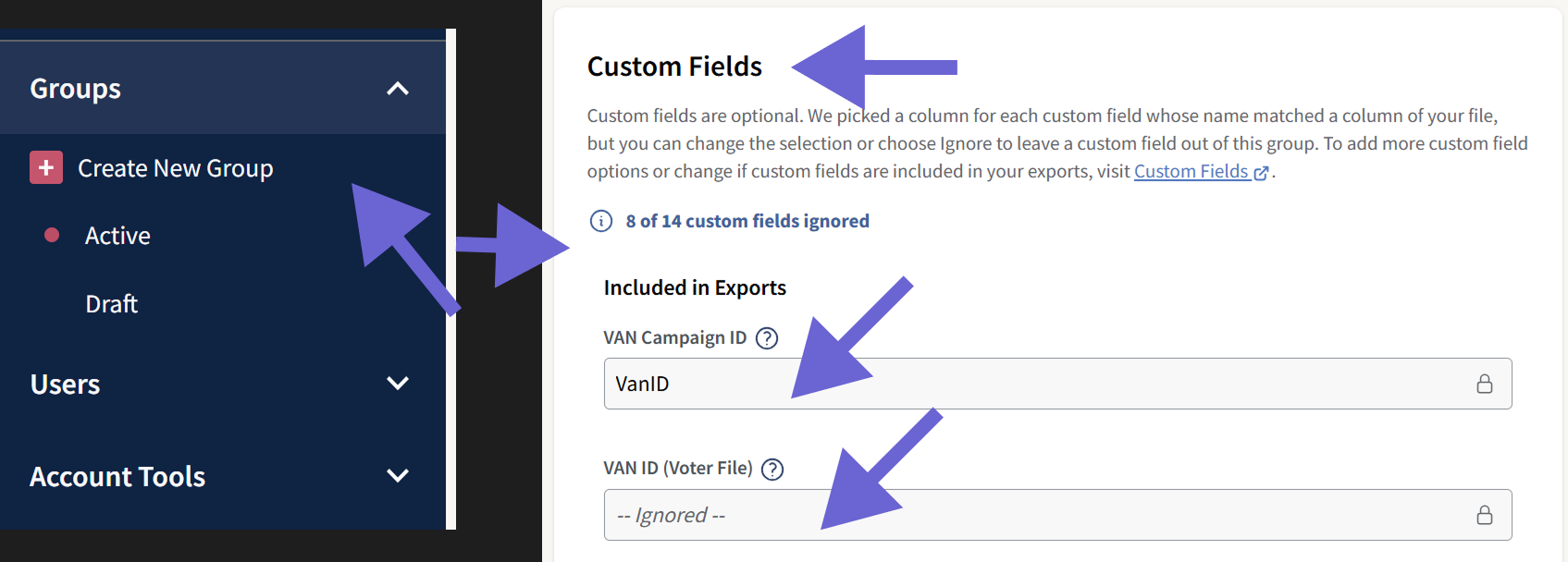
Alternatively, import your list from VAN and it will be mapped automatically. For detailed instructions see: Creating a Group from a VAN Imported List.
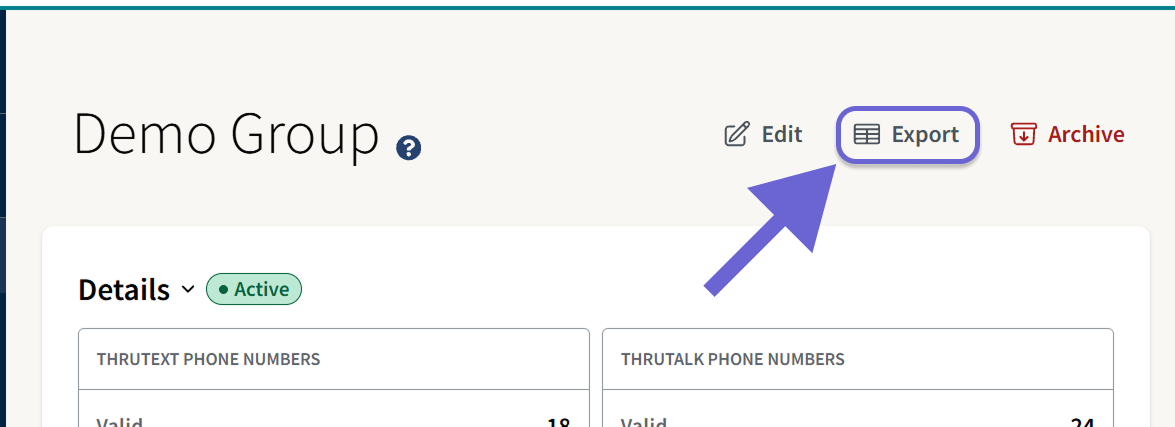
After the group is uploaded and active, export the group:
Step 3: Match the VAN IDs Between the Two Files
In this step, you’ll use Excel to match rows between the campaign export and the group export using phone numbers.
How XLOOKUP Works
The XLOOKUP formula allows you to bring VAN IDs from the group export over to the campaign export. XLOOKUP works by identifying a shared value between two sets of data, finding the location of a specific value from one set, and then returning a value from the other set of data. We'll explain how to use XLOOKUP, and then walk you through it step-by-step.
In this case:
- You can create a formula in excel by typing an equal sign, followed by the name of the function, followed by some parameters in parentheses.
=formula(parameter_1,paramaeter_2,parameter_3)
- The parameters that XLOOKUP requires includes:
- A lookup value, or the shared value between the two sets of data. In this case, this will be the phone number
- A Lookup column. In this case, this will be the phone number column in the group export
- A Return column. In this case, this will be the VAN ID column in the group export.
- An XLOOKUP formula will look like
=XLOOKUP(lookup_value, lookup_column, return_column)
Here's a step-by-step explanation:
- Open the campaign export and the group export side-by-side.
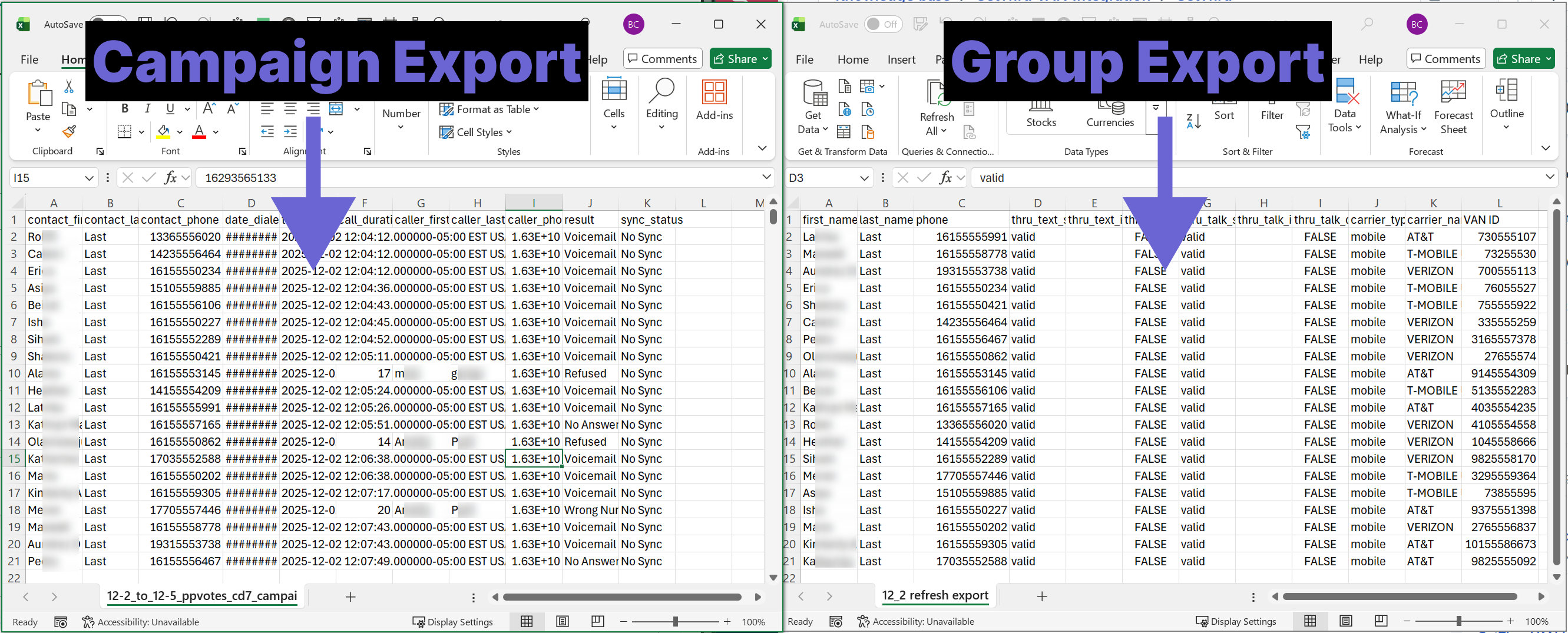 (All sensitive personal information in the examples is altered or obscured.)
 - In the campaign export, find the first empty column to the right. Add a header to this column, such as "VAN ID". In this example, that is column L.
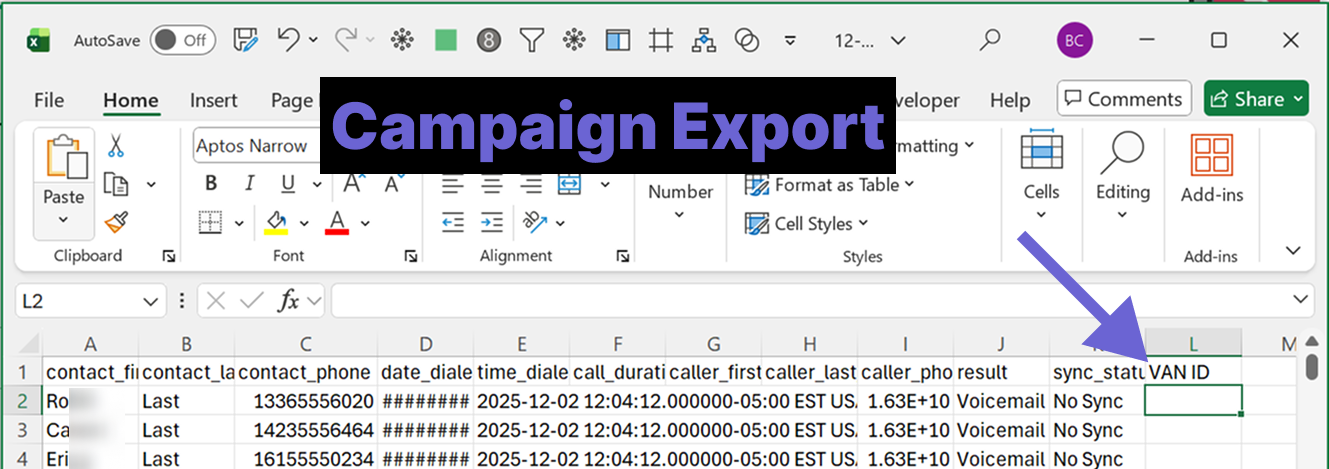
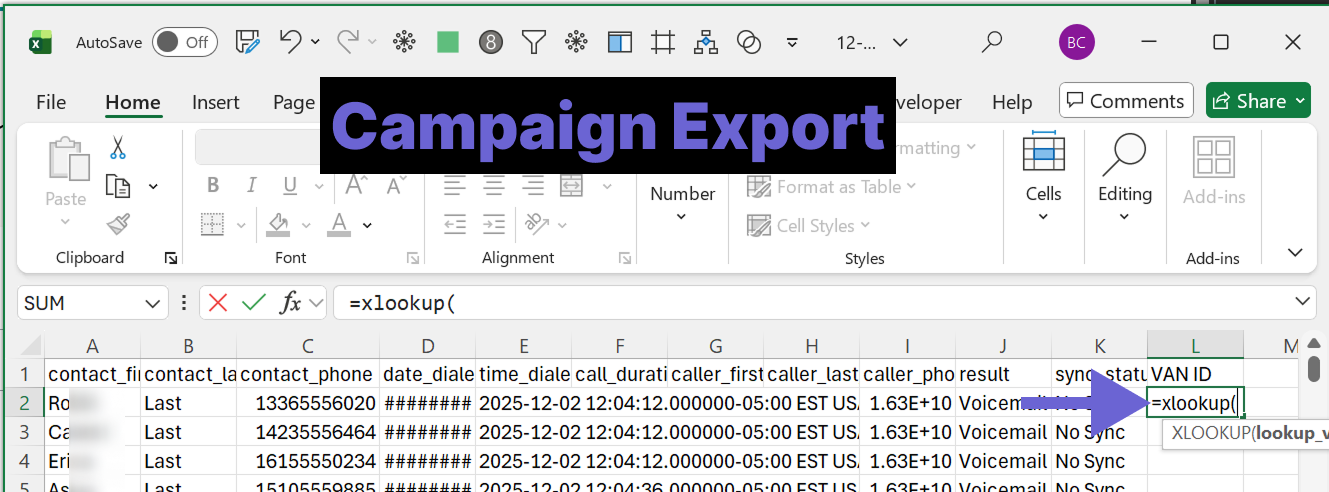
- In the cell below the header, start creating your XLOOKUP formula. Type
=xlookup(
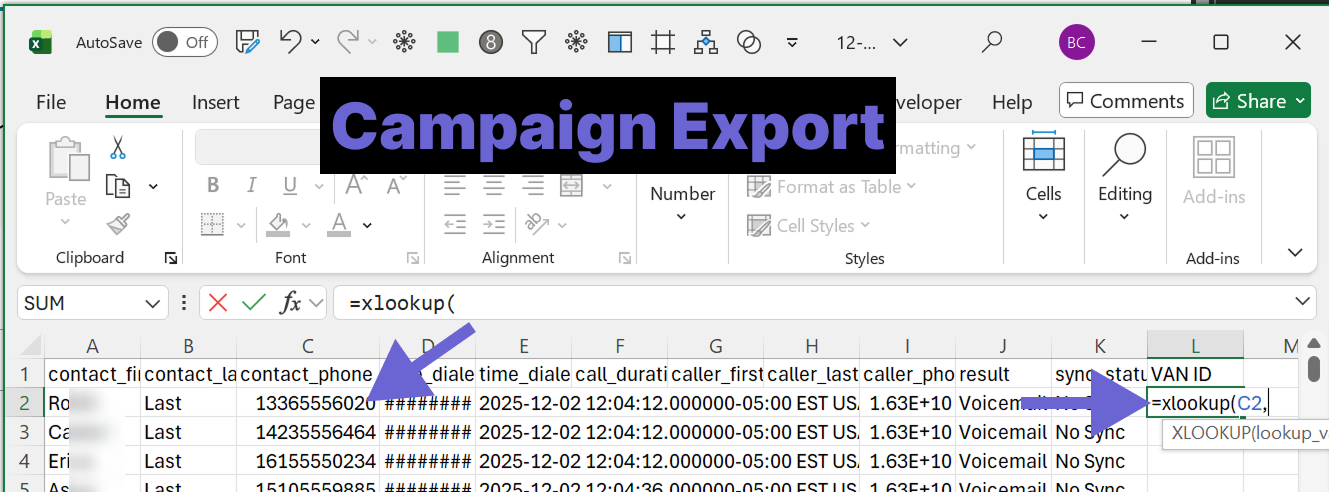
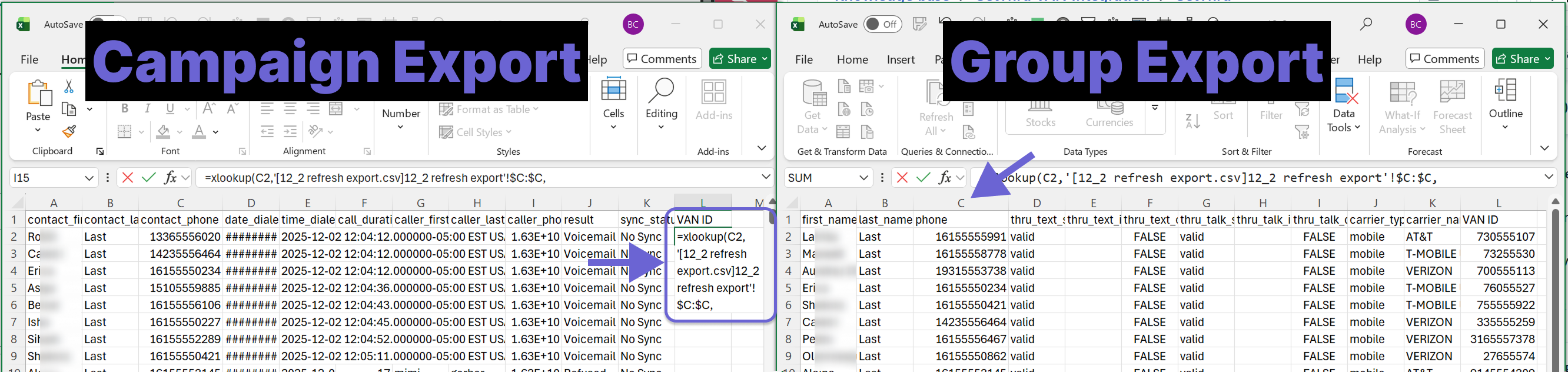
- Next, you will select the lookup value with your mouse. Click the phone number in the same row as your formula in the campaign export (same file). In this example, this is cell C2. The cell you select will appear in the formula. Type a comma to end this step. The formula will look like:
=xlookup(C2,
- Next, you will select your lookup column. Click on the phone number column in the group export. Make sure to click on the letter at the top of the column to select the entire column. In this example, this is column C in the group export. The column you select will appear in the formula. Type a comma to end this step. The formula will look like:
=xlookup(C2,'[group_export_name]'!$C:$C,
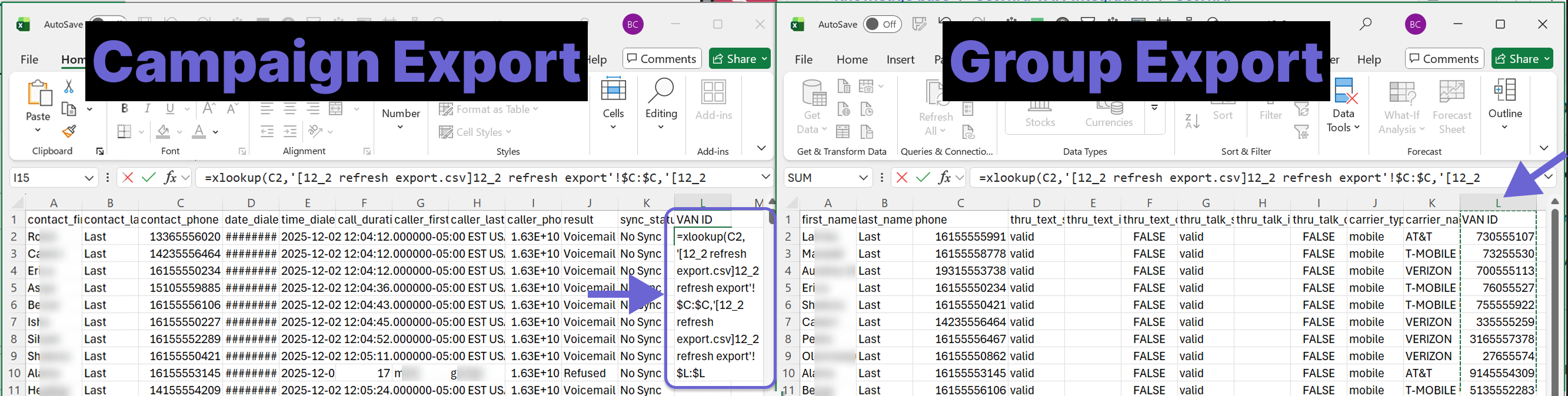
- Next, you will select your return column. Click on the VAN ID column in the group export. Make sure to click on the letter at the top of the column to select the entire column. In the above example, you would click on column L in the group export. The column you select will appear in the formula. The formula will look like:
=xlookup(C2,'[group_export_name]'!$C:$C,'[group_export_name]'!$L:$L
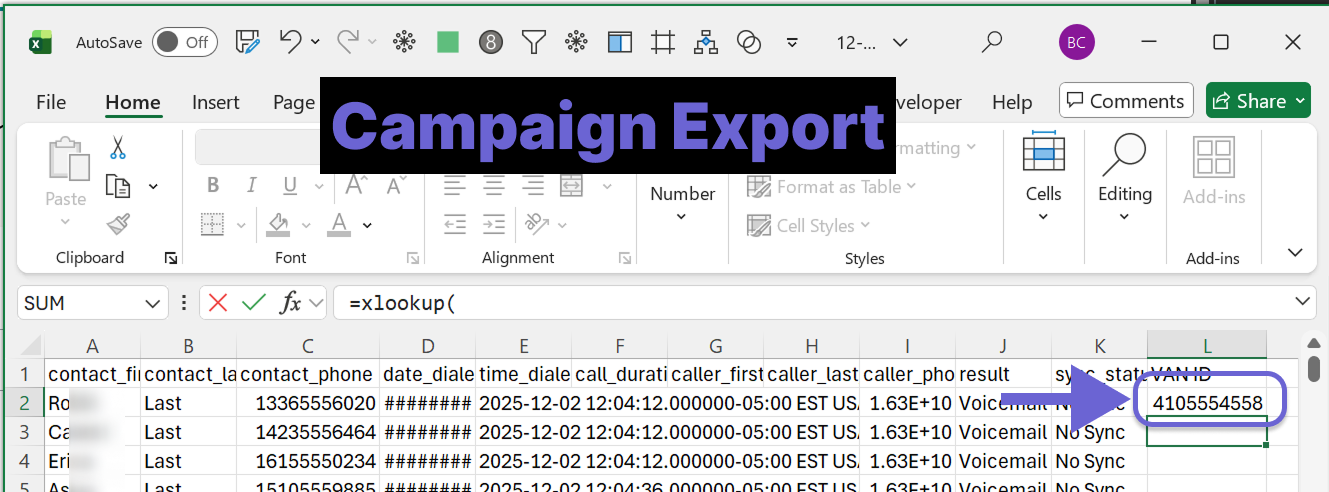
- Click ENTER on your keyboard to close and apply the formula.
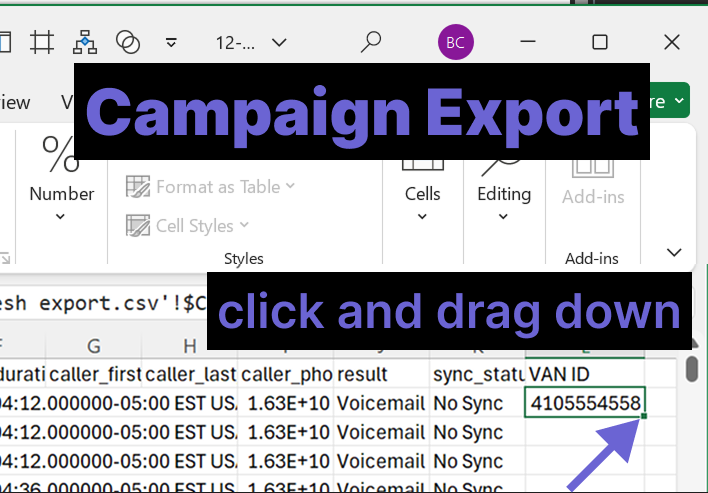
- Next, you will apply the formula to the remaining cells in this column. First, click on the cell with your formula to highlight it. Next, click and hold the green square at the bottom right corner of the cell, and drag it down to the end of your data while still holding down the click.
Your campaign export now includes VAN IDs. Make sure that you save your file.
Step 4: Upload to VAN
Your CSV is now ready to upload to VAN.
If you are logged in to VAN, you can access the following article: Overview: Bulk Uploader and Bulk Apply.
Please reach out to support@getthru.io if you have any questions.